One of the trickiest aspects of load balancing (and load balancing has lots of tricky aspects) is how to handle health checking. Health checking is of course the process where by the load balancer (or application delivery controller) does periodic checks on the servers to make sure they’re up and responding. If a server is down for any reason, the load balancer should detect this and stop sending traffic its way.
Pretty simple functionality, really. Some load balancers call it keep-alives or other terms, but it’s all the same: Make sure the server is still alive.
One of the misconceptions about health checking is that it can instantly detect a failed server. It can’t. Instead, a load balancer can detect a server failure within a window of time. And that window of time is dependent upon a couple of factors:
Interval (how often is the health check performed)
Timeout (how often does the load balancer wait before it gives up)
Count (some load balancers will try several times before marking a server as “down”)
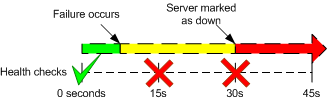
As an example, take a very common interval setting of 15 seconds, a timeout of 5 seconds, and a count of 2. If I took a shotgun to a server (which would ensure that it’s down), how long would it take the load balancer to detect the failure?
In the worst case scenario for time to detection, the failure occurred right after that last successful health check, so that would be about 14 seconds before the first failure was even detected. The health check fails once, so we wait another 15 seconds before the second health check. Now that’s two down, and we’ve got a server marked as down.
So that’s about 29 seconds at a worst case scenario, or 16 seconds on a best case scenario. Sometimes server administrators hear that and want you to tune the variables down, so they can detect a failure quicker. However, that’s about as low as they go.
If you set the interval for more than 15 seconds, depending on the load balancer, it can unduly burden the control plane processor with all those health checks. This is especially true if you have hundreds of servers in your server farm. You can adjust the count down to 1, which is common, but remember a server would be marked down on just a single health check failure.
I see you have failed a single health check. Pity.
The worst value to tune down, however, is the timeout value. I had a client once tell me that the load balancer was causing all sorts of performance issues in their environment. A little bit of investigating, and it turned out that they had set the timeout value to 1 second. If a server didn’t come up with the appropriate response to the health check in 1 second, the server would be marked down. As a result, every server in the farm was bouncing up and down more than a low-rider in a Dr Dre video.
As a result, users where being bounced from one server to another, with lots of TCP RSTs and re-logging in (the application was stateful, requiring users being tied to a specific server to keep their session going). Also, when one server took 1.1 seconds to respond, it was taken out of rotation. The other servers would have to pick up the slack, and thus had more load. It wasn’t long before one of them took more than a second to respond. And it would cascade over and over again.
When I talked to the customer about this, they said they wanted their site to be as fast as possible, so they set the timeout very low. They didn’t want users going onto a slow server. A noble aspiration, but the wrong way to accomplish that goal. The right way would be to add more servers. We tweaked the timeout value to 5 seconds (about as low as I would set it), and things calmed down considerably. The servers were much happier.
So tweaking those knobs (interval, timeout, count) are always a compromise between detecting a server failure quickly, and giving a server a decent chance to respond as well as not overwhelming the control plane. As a result, it’s not an exact science. Still, there are guidelines to keep in mind, and if you set the expectations correctly, the server/application team will be a lot happier.
My colleague Mike Crane pointed me to a PDF, and it looks like the CCIE Data Center certification is on, and it’s going to be announced at Cisco Live Australia this month.
This is how I looked when I saw the PDF on CCIE DC
If you go to the Ciscolive Virtual Session catalog (you can sign up to the site for free), and take a look at BRKCRT-1612. It lists the topics covered in the blueprint as:
Cisco Nexus 7000, 5000, 2000, 1000v
Cisco ACE 4710 (and presumably the GSS)
Cisco MDS
UCS
Catalyst 3750 (really?)
Pretty much what we expected, although there’s no WAAS (which surprised me). The ACE portion also surprised me, as I’d wondered if Cisco was really committed to the ACE. If it’s going to be in the CCIE DC track, they’re locked in to the ACE line for years.
But yeah, I’m so into this. The only CCIE track before DC that was even remotely relevant to what I do was Storage. If I went for the R&S it would represent maybe 20% of what I do, with 80% being fairly extraneous. DC is right up my alley.
October 3rd, 2025: Huge update! Several things have changed with TLS/SSL and this needs a revamp! Also I fixed the “-“, which was messed up.
I would write a new article, but this comes up as one of the top search results when searching for how to make your own root CA, so I’m going to make the edits here. In the intereste of transparency, I’ll keep the original instructions below, but crossed out.
This article is now just about making your own root certificate authority (ICA, Internal Certificate Authority). There are a few options like Let’s Encrypt and FreeSSL if you want to use a PCA (Public Certificate Authority) that may be better suited for that purpose.
The goal here is to make your own ICA to sign certificates to put on your own devices for things like HTTP-based management (WebUIs, plus any HTTP-based APIs such as gNMI, etc.).
One of the goals of this update was to set it up so that not only FQDNs and hostnames would work, but also devices that don’t have a DNS entry and you just go in via the IP address.
Creating the Root Certificate
Creating root certificates is ridiculously easy as they’re just self-signed certs. That’s it. The only thing that separates the root certificates we create here and the companies like Digicert, Entrust, etc. have is that they have their root certificates installed on billions of devices (through operating system certificate stores that you find on laptops, desktops, and the billions of smart phones out in the world).
ICAs only need to have the root certificate installed on the organization’s devices, which for home labs and many organizations is relatively easy to do.
Creating a root certificate has just three steps:
Create a root private key
Create a root certificate by self-signing a CSR (certificate signing request) with the private key
Now you’ve got a certificate and a private key. That private key should be very private of course, as it can be used to sign valid certificates for anyone that trusts the root certificate.
Place Certificate in Certificate Stores
Take the rootCA.cer and place it in your various certificate stores. Most of the time your operating system will have a certificate store, though some applications (like Firefox) maintain their own certificate store. Any certificate signed by this cert and key will then be trusted.
One of the things that has changed with certificates is how the CN field is treated. If you have a SAN (Subject Alternative Name) the CN is usually ignored. If you want your certificate to be valid for an IP or DNS name, you’ll want to put them in the subjectAltName field. You can put multiple domain names and multiple IP addresses as key:value pairs separated by commas. Whatever might end up the browser’s address bar needs to be in here. In this case, once the certificate is signed, “server1”, “server1.domain.com”, and the IP address of “192.168.1.101” would both show valid as long as the client trusted the root certificate.
Sign the CSR with the Root Certificate and Key
Now sign the CSR with the root key and root certificate:
You can delete the CSR, and now you have a private server key and server certificate. The private key and cert will need to be set in the server’s HTTP server, and of course the private key should be kept very private.
Implementation
You may have to restart your browser to see the warning go away. This confounded me a few times. Simply refreshing doesn’t do it.
Jan 11th, 2016: New Year! Also, there was a comment below about adding -sha256 to the signing (both self-signed and CSR signing) since browsers are starting to reject SHA1. Added (I ran through a test, it worked out for me at least).
November 18th, 2015: Oops! A few have mentioned additional errors that I missed. Fixed.
July 11th, 2015: There were a few bugs in this article that went unfixed for a while. They’ve been fixed.
SSL (or TLS if you want to be super totally correct) gives us many things (despite many of the recent shortcomings).
Privacy (stop looking at my password)
Integrity (data has not been altered in flight)
Trust (you are who you say you are)
All three of those are needed when you’re buying stuff from say, Amazon (damn you, Amazon Prime!). But we also use SSL for web user interfaces and other GUIs when administering devices in our control. When a website gets an SSL certificate, they typically purchase one from a major certificate authority such as DigiCert, Symantec (they bought Verisign’s registrar business), or if you like the murder of elephants and freedom, GoDaddy. They range from around $12 USD a year to several hundred, depending on the company and level of trust. The benefit that these certificate authorities provide is a chain of trust. Your browser trusts them, they trust a website, therefore your browser trusts the website (check my article on SSL trust, which contains the best SSL diagram ever conceived).
Your devices, on the other hand, the ones you configure and only your organization accesses, don’t need that trust chain built upon the public infrastrucuture. For one, it could get really expensive buying an SSL certificate for each device you control. And secondly, you set the devices up, so you don’t really need that level of trust. So web user interfaces (and other SSL-based interfaces) are almost always protected with self-signed certificates. They’re easy to create, and they’re free. They also provide you with the privacy that comes with encryption, although they don’t do anything about trust. Which is why when you connect to a device with a self-signed certificate, you get one of these: So you have the choice, buy an overpriced SSL certificate from a CA (certificate authority), or get those errors. Well, there’s a third option, one where you can create a private certificate authority, and setting it up is absolutely free.
OpenSSL
OpenSSL is a free utility that comes with most installations of MacOS X, Linux, the *BSDs, and Unixes. You can also download a binary copy to run on your Windows installation. And OpenSSL is all you need to create your own private certificate authority. The process for creating your own certificate authority is pretty straight forward:
Create a private key
Self-sign
Install root CA on your various workstations
Once you do that, every device that you manage via HTTPS just needs to have its own certificate created with the following steps:
Create CSR for device
Sign CSR with root CA key
You can have your own private CA setup in less than an hour. And here’s how to do it.
Create the Root Certificate (Done Once)
Creating the root certificate is easy and can be done quickly. Once you do these steps, you’ll end up with a root SSL certificate that you’ll install on all of your desktops, and a private key you’ll use to sign the certificates that get installed on your various devices.
Create the Root Key
The first step is to create the private root key which only takes one step. In the example below, I’m creating a 2048 bit key:
openssl genrsa -out rootCA.key 2048
The standard key sizes today are 1024, 2048, and to a much lesser extent, 4096. I go with 2048, which is what most people use now. 4096 is usually overkill (and 4096 key length is 5 times more computationally intensive than 2048), and people are transitioning away from 1024. Important note: Keep this private key very private. This is the basis of all trust for your certificates, and if someone gets a hold of it, they can generate certificates that your browser will accept. You can also create a key that is password protected by adding -des3:
openssl genrsa -des3 -out rootCA.key 2048
You’ll be prompted to give a password, and from then on you’ll be challenged password every time you use the key. Of course, if you forget the password, you’ll have to do all of this all over again.
This will start an interactive script which will ask you for various bits of information. Fill it out as you see fit.
You are about to be asked to enter information that will be incorporated
into your certificate request.
What you are about to enter is what is called a Distinguished Name or a DN.
There are quite a few fields but you can leave some blank
For some fields there will be a default value,
If you enter '.', the field will be left blank.
-----
Country Name (2 letter code) [AU]:US
State or Province Name (full name) [Some-State]:Oregon
Locality Name (eg, city) []:Portland
Organization Name (eg, company) [Internet Widgits Pty Ltd]:Overlords
Organizational Unit Name (eg, section) []:IT
Common Name (eg, YOUR name) []:Data Center Overlords
Email Address []:none@none.com
Once done, this will create an SSL certificate called rootCA.pem, signed by itself, valid for 1024 days, and it will act as our root certificate. The interesting thing about traditional certificate authorities is that root certificate is also self-signed. But before you can start your own certificate authority, remember the trick is getting those certs in every browser in the entire world.
Install Root Certificate Into Workstations
For you laptops/desktops/workstations, you’ll need to install the root certificate into your trusted certificate repositories. This can get a little tricky. Some browsers use the default operating system repository. For instance, in Windows both IE and Chrome use the default certificate management. Go to IE, Internet Options, go to the Content tab, then hit the Certificates button. In Chrome going to Options and Under The Hood, and Manage certificates. They both take you to the same place, the Windows certificate repository. You’ll want to install the root CA certificate (not the key) under the Trusted Root Certificate Authorities tab. However, in Windows Firefox has its own certificate repository, so if you use IE or Chrome as well as Firefox, you’ll have to install the root certificate into both the Windows repository and the Firefox repository. In a Mac, Safari, Firefox, and Chrome all use the Mac OS X certificate management system, so you just have to install it once on a Mac. With Linux, I believe it’s on a browser-per-browser basis.
Create A Certificate (Done Once Per Device)
Every device that you wish to install a trusted certificate will need to go through this process. First, just like with the root CA step, you’ll need to create a private key (different from the root CA).
openssl genrsa -out device.key 2048
Once the key is created, you’ll generate the certificate signing request.
openssl req -new -key device.key -out device.csr
You’ll be asked various questions (Country, State/Province, etc.). Answer them how you see fit. The important question to answer though is common-name.
Common Name (eg, YOUR name) []: 10.0.0.1
Whatever you see in the address field in your browser when you go to your device must be what you put under common name, even if it’s an IP address. Yes, even an IP (IPv4 or IPv6) address works under common name. If it doesn’t match, even a properly signed certificate will not validate correctly and you’ll get the “cannot verify authenticity” error. Once that’s done, you’ll sign the CSR, which requires the CA root key.
This creates a signed certificate called device.crt which is valid for 500 days (you can adjust the number of days of course, although it doesn’t make sense to have a certificate that lasts longer than the root certificate). The next step is to take the key and the certificate and install them in your device. Most network devices that are controlled via HTTPS have some mechanism for you to install. For example, I’m running F5’s LTM VE (virtual edition) as a VM on my ESXi 4 host. Log into F5’s web GUI (and should be the last time you’re greeted by the warning), and go to System, Device Certificates, and Device Certificate. In the drop down select Certificate and Key, and either past the contents of the key and certificate file, or you can upload them from your workstation.
After that, all you need to do is close your browser and hit the GUI site again. If you did it right, you’ll see no warning and a nice greenness in your address bar.
And speaking of VMware, you know that annoying message you always get when connecting to an ESXi host?
You can get rid of that by creating a key and certificate for your ESXi server and installing them as /etc/vmware/ssl/rui.crt and /etc/vmware/ssl/rui.key.
When building any standalone server (a server without a SAN or NAS for storage), one of the considerations is how to handle storage. This typically includes a conversation about RAID, and making sure the local storage has some protection.
With ESXi, this is a bit trickier than most operating systems, since ESXi doesn’t do software RAID like you can get with Linux or Windows, nor does it support the motherboard BIOS RAID you get with most motherboards these days (which isn’t hardware RAID, just another version of software RAID).
So if you want to RAID out your standalone ESXi box, you’re going to need to purchase a supported hardware RAID card. These cards aren’t the $40 ones on Newegg, either. They tend to be a few hundred bucks (to a few thousands, depending).
Most people who are serious about building a serious ESXi server dig around and try to find a RAID card that will work, either buying new, scrounging for parts, or hitting up eBay.
My suggestion to you if you’re looking to put a RAID card in your standalone ESXi host, consider this:
Are you sure you need a RAID card?
The two primary reasons people do RAID is for data integrity (lose a drive, etc.) and for performance.
As far as data integrity goes, I find people tend make the same mistake I used to: They put too much faith in RAID arrays as a method to keep data safe. One of the most important lesson I’ve ever learned in storage is that RAID is not a backup. It’s worth saying again:
RAID Is Not A Backup
I’ve yet to have RAID save my soy bacon, and in fact in my case it’s caused more problems than its solved. However, I’ve been saved many times by a good backup. My favorite form of backup that doesn’t involve a robot? A portable USB drive. They’re high capacity, they don’t require a DC power brick, and easily stored.
Another reason to do RAID is performance. Traditional HDDs are, well, slow. They’re hampered by the fact they are physical devices. By combining multiple drives in a RAID configuration, you can get a higher number of IOPS (and throughput, but for virtual machines that’s typically not as important).
More drives, more IOPS.
A good hardware RAID card will also have a battery-backed up RAM cache, which while stupid fast, only works if you actually hit the cache.
But there’s the thing: If you need performance, you’re going to need a lot of hard drives. Like, a lot. Remember that SNL commercial from years ago? How many bowls of your regular bran cereal does it take to equal one bowl of Colon Blow Cereal? I’ve got an SSD that claims 80,000 IOPS. Assuming I get half that, I’d need about 500 hard drives in a RAID 0 array to get the same number of IOPS. And that’s without any redundancy. That’s a lot of PERC cards and a lot of drives.
So want performance? Why not ditch the PERC and spend that money on an SSD. Of course, SSDs aren’t as cheap as traditional HDD on a per gigabyte basis, so you’ll just want to put virtual disks on the SSD that can really benefit from. Keep your bulk storage (such as file server volumes) on cheap SATA drives, and back them up regularly (which you should do with or without a RAID array).
Another idea might be to spend the RAID card money on a NAS device. You can get a 4 or 5 bay NAS device for the price of a new RAID card these days, and they can be used for multiple ESXi hosts as well as other uses. Plus, they handle their own RAID.
Ideally of course, you want you server with RAID storage, ECC memory, IPMI or other out of band management, SSD data stores, a SAN, a backup system with a robot, etc. But if you’re building a budge box, I’m thinking the RAID card can be skipped.
I recalled a comment I heard Greg Ferro made on a packet pushers episode (and subsequent blog post) about copper not being reliable enough for storage, with the specific issue being the bit error rate (BER), how how many errors the standard (FC, Ethernet, etc.) will allow over a physical medium. As we’ve talked about before, networking people tend to be a little more devil-may-care about their bits, where as storage folks get all anal rententive chef about their bits.
For 1 Gigabit Ethernet over copper (802.3ab/1000Base-T), the standard calls for a goal BER of less than 10-10, or one wrong bit in every 10,000,000,000 bits. Which incidentally, is one error every second for a line rate 10 Gigabit Ethernet. For Gigabit, that’s on error every 10 seconds, or 6 per minute.
Fibre Channel has a BER goal of less than 10-12, or on error in every 1,000,000,000,000 bits. That would be about 2 errors a minute with 10 Gigabit Ethernet. That’s also 100 times less error-prone than Ethernet, which if you think about it, is a lot.
To give a little scale, that’s like comparing Barney Fife from The Andy Griffith show’s bad assery to Jason Statham’s character in.. well any movie he’s ever been in.
Holy shit, is he fighting… truancy?
Barney Fife, the 10-10 error rate of law enforcement. Wait… Wow, did I really just say that?
So given how fastidious about their storage networks storage folks can be, it’s understandable that storage administrator wouldn’t want their precious SCSI commands running over a network that’s 100 times less reliable than Fibre Channel.
However, while the Gigabit Ethernet standard has a BER target of less than 10-10, the 802.3an standard for 10 Gigabit Ethernet over copper (10GBaseT) has a BER goal of less than 10-12, which is in line with Fibre Channel’s goal. So is 10 Gigabit Ethernet over Cat 6A good enough for storage (specifically FCoE)? Sounds like it.
But the discussion also got me thinking, how close do we get to 10-10 as an error rate in Gigabit Ethernet? I just checked all the physical interfaces in my data center (laundry room), and every error counter is zero (presumably most errors would show up as CRC errors). And all it takes to hit 1010 bits is 1.25 Gigabytes of data transfer, and I do that when I download a movie off of iTunes. So I know I’ve put dozens of gigs through my desktop since it was last rebooted, and nary an error. And my cabling isn’t exactly data center standard. One cable I use came with a cheap wireless access point I got a while ago. It makes me curious to what the actual BER is in reality with decent cables that don’t come close to 100 meters.
Of course, there’s still the power consumption issues and other drawbacks that Greg mentioned when compared to fiber (or coax). However, it’ll be good to have another option. There are some shops that won’t likely ever have fiber optics deployed.
When I heard about Apple’s new education initiative, I got excited. For one, it’s Apple. And yes, I’m a fanboy. So, like… Squeeeeeeee.
Tony, you have a problem
But it’s not algebra or geography books geared towards primary education that excites me (although that’s pretty cool), it’s how it could revolutionize IT ebooks.
Right now the primary market for technical books is print books. There are technical eBooks available on a variety of eBook platforms, but for the most part, technical books are a print business, with eBooks as an afterthought.
This approach has worked since the tech industry begain, but it does have its limiations.
For one, tech books usually have a percentage of its content that’s out of date by the time it reaches the shelves. Technical books can take over a year to get from outline to ending up on the shelves, and naturally the fast-paced moves from under the book. And going an update or corrections to a book is a major effort. If it’s C programming, it’s probably not too much of an issue. But a book on FCoE or VXLAN? There’s bound to be lots of changes and corrections within the span of a year.
What do you mean my book on cell phones isn’t current?
Also, eBooks right now are mostly just electronic versions of the paper books (ed: duh). The electronic format could do a whole lot more than just words on page, as shown by Apple in their presentation. With a fully interactive eBook, there could be animations (really awesome for networking flows), interactive quizzes (and huge test banks, not just 10 questions per chapter).
And right now eBooks seem to be an afterthought. Not all physical titles are available in eBook format (hint, several important and influential Fibre Channel books), and the ones that are can seem like a rush job. In my preparation for the CCIE Storage written test, I picked up this ebook on the Kindle platform: CCIE Network Storage. The ebook version was riddled with formatting errors which made it sometimes difficult to follow. Also, it looks like they’ve seem to have even taken it off Kindle.
Right now my favorite eBook format is the Kindle. Despite being an Apple fanboy, Kindle has the largest library of technical books, by far. And Kindle’s reader and cloud storage make managing your library stupid easy. Apple also makes it easier, although the platform is limited to Apple devices, and the tech library doesn’t seem to be as comprehensive. All of this this is in stark contrast to Adobe’s shitty eBook platform, which seems to want to destroy eBooks.
The Controversy
So the controversy is in Apple’s EULA. If you create an iBook with the iBook Author, that “Work” must be distributed through the Apple iBook store if you charge a fee for it. The tricky part is how Apple defines the term “Work”. Right now it’s a bit ambiguous. Some claim that the term “Work” defines the totality of the book. Others (like the Ars article) say “Work” only defines the output of the iBook Author program (PDF of Apple’s proprietary eBook format).
So if I write a book, and create an eBook version of it with Apple’s iBook Author (which looks like it create amazingly interactive ebooks), can I take the material from the book and make a (probably less interactive) Kindle version of the book?
Tony’s Take
Whether you like Apple or not, you have to admit this certainly ups the game. It’s high time eBooks took center stage for technical eBooks, instead of being an afterthought.
Right now the networking and data center landscape is changing fast, and we need new and better ways to cram new knowledge into our brainbags. A good interactive ebook, riddled with animations, audio, and large test banks would certainly go a long way to help. I don’t really care if it’s Apple or Amazon that provide that format. But right now, it looks like Apple is the only one saddling up.
Since my day job is teaching, I need to do a lot of certification tests. There are periods of time when I seem to live in a Pearson VUE testing center. However, In the past three months I’ve noticed the number of testing centers has dropped significantly. There used to be three in the Portland metro area, but about three months ago that number went down to zero. One came back, but there aren’t any open testing dates until March now.
Which is a problem, because I need to do my VCP5 certification before Feb 29th, 2012, otherwise in order to get the VCP5 certification I’ll have to take a course (I’m a current VCP4 holder).
I brought this up on Twitter a few months ago, and a few people responded they had issues as well recently with no local testing centers.
So I wonder, is the Pearson VUE testing network collapsing? Or is it just Portland, Oregon?
Desktop virtualization (VDI) is a huge topic in data center discussions lately. I’ve worked with it somewhat in a limited fashion (such as virtual desktops for instructional courses) as well as dealing with some of the fallout from infrastructure requirements (HULK NEED IOPS). Just before Christmas, I got a briefing from a colleague who teaches VDI on the current status of VDI, from both a Citrix and VMware perspective, and I can tell you this: VDI is insanely depressing.
Why is it depressing? Because it’s 2012, and yet the current slate of VDI solutions are a convoluted mess. Both Citrix and VMware offer comprehensive solutions (and many opt for both: A VMware base and a Citrix presentation layer). However, the bending-over backwards both companies need to do to work within the Microsoft world is astounding. And it’s not the fault of Citrix or VMware. The fault is entirely that of Microsoft.
Dude, You’re Getting A Dell. Or Else.
This guy represents the antithesis of VDI
Microsoft, for what is likely a variety of reasons, seems to absolutely despise the very concept of VDI and statelessness. They’re just fine and dandy with the opposite of VDI: Dude, you’re getting a Dell. Everyone gets an individual PC, with Windows and Office, and every PC that ships results in Microsoft getting a check. Not bad work if you can get it.
Back In My Day
I had perfect VDI 15 years ago. In 1996, I worked for a company called digitalNATION as a green Unix admin and doing dial-up tech support (Trumpet Winsocket… eghh).
Even today, The Networking Stack That Shall Not Be Named is only mentioned in hushed whispers
Every employee had a NeXT workstation, from the receptionist to the CEO. The NeXT workstations could be run independently, or they could be completely stateless, with my home directory stored on an NFS server. Steve Jobs called it “NFS dialtone”. I’d sit down at any workstation, log in, and have all my files, email, etc. at my disposal. The profile even knew that I used my mouse left-handed.
Oh, hello. You sexy workstation you.
Everything could be centrally managed. It was a desktop managers dream, and represents everything that an enterprise wishes Windows could be like.
Of course NeXT didn’t really take off and floundered for years until they got bought and took over Apple, and NeXTSTEP became the basis for Mac OS X and iOS. Sadly, with Apple being a consumer company, they never really pursued this marvelous statelessness. It just didn’t make sense at the time for consumer devices, especially given the networking infrastructure in 1997. Even today, it’s still a bit iffy, as the Google Chromebooks have shown.
NeXT wasn’t the only company that had functional statelessness. Sun had it with their Sun Rays (Scott McNealy recently lamented the loss of his stateless Sun Ray), and Oracle also tried a while back. Microsoft has nothing like this, and it doesn’t seem like they have any plans to have it in the near future.
But boy do enterprises want it. So much so that a huge industry has sprung up (at least in the hundreds of millions, possibly billions per year) that essentially attempts to drag Windows Desktops kicking and screaming into something that vaguely resembles stateless.
Enterprises beg and plead for it, and what does Microsoft do? They put out studies on why VDI is more expensive.
The licensing scheme is also quite convoluted, and ever changing. There could probably be a certification based just on MS licensing for VDI, and it’d be a tough one, too.
Microsoft is afraid of killing its twin Golden Geese: Windows and Office.
Windows has a lock on the desktop because of the Win32 API. This has been the dominant way to get applications on the desktop for the past say 20 years. While you can certainly argue about the quality of Microsoft Windows, you can’t argue with its pervasiveness.
But with web applications, HTML5, and the like, Win32 is less significant than it used to be. And by itself, it could be usurped.
But Microsoft has another trick up its sleeve: MS Office. Office has been holding our documents, spreadsheets, and slide presentations hostage for even longer. It’s the ubiquitous format for sending documents, and it would be tough for any organization to eschew it in favor of another format. It’s simply too pervasive. Some document exchanges can be replaced with PDFs and HTML(5), but Office still has the lions share of document exchanges.
As others have, through the years I’ve tried to get rid of Office in favor of other office suites (Apple’s suite, OpenOffice, etc.). All of those suites are capable applications that do exactly what I need them to, but even with the ability to read and write Word/Excel/PowerPoint, the workflow just sucks. There’s too many little details that don’t translate well. All of us who’ve tried have had mangled spreadsheets, weirdly formatted doc files, and PDFs with funkiness. Let’s be clear here, Office doesn’t do anything the other suites can’t do functionally. In fact, it probably does too much which is why it’s such a bloated mess. But everyone uses it, and nothing else gets the formating 100% right. Many get it 95% right, but that extra 5% is a hassle.
That’s the most depressing part. Nothing so far as made a dent in Office’s dominance. So Win32 is relatively safe. So Windows isn’t going anywhere for a while. So VDI is going to be a miserable mess, until Microsoft decides to do something about it. Which they likely won’t.
The modern data center is a lot like modern air transportation. Not nearly as sexy as it used to be, the food isn’t nearly as good as it used to be, and more choke points than we used to deal with.
With 10 Gigabit Ethernet Fabrics available from vendors like Cisco, Juniper, Brocade, et all, we can conceive of these great, non-blocking, lossless networks that let us zip VMs and data to and fro.
And then reality sets in. The security team needs to inspection points. That means firewalls, IPS, and IDS devices. And one thing they’re not terribly good at? Gigs and gigs of traffic. Also scaling. And not pissing me off.
Pictured: Firewall Choke Points
This battle between scalability and security has data center administrators and security groups rumbling like some sort of West Side Data Center Story.
Dun dun da dun! Scalability!
Dun doo doo ta doo! Inspection!
So what to do? Enter Gigamon, the makers of the orangiest network devices you’ll find in a data center. They were part of Networking Field Day 2, which I participated in back in October.
Essentially what Gigamon allows you to do is scale out your SPAN/Mirror ports. On most Cisco switches, only two ports at a time can be spitting mirrored traffic. For something like a Nexus 7000 with up to 256 10 Gigabit Interfaces, that’s usually not sufficient for monitoring anything but a small smattering of your traffic.
A product like Gigamon can tap fibre and copper links, or take in the output of a span port, classify the traffic, and send it out an appropriate port. This would allow a data center to effectively scale traffic monitoring in a way that’s not possible with mere mirrored ports alone. It would effectively remove all choke points that we normally associate with security. You’d just need to scale up with the appropriate number of IDS/IPS devices.
But with great power, comes the ability to do some unsavory things. During the presentation Gigamon mentioned they’d just done a huge install with Russia (note: I wouldn’t bring that up in your next presentation), allowing the government to monitor data of its citizens. That made me less than comfortable (and it’s also why it scares the shit out of Jeremy Gaddis). But “hey, that’s how Russia rolls” you might say. We do it here in the US, as well, through the concept of “lawful interception“. Yeah, I did feel a little dirty after that discussion.
Still, it could be used for good by removing the standard security choke points. Even if you didn’t need to IPS every packet in your data center, I would still consider architecting a design with Gigamon or another vendor like them in mind. It wouldn’t be difficult to consider where to put the devices, and it could save loads of time in the long run. If a security edict came down from on high, the appropriate devices would be put in place with Gigamon providing the pipping without choking your traffic.
In the mean time, I’m going to make sure everything I do is SSL’d.
Note: As a delegate/blogger, my travel and accommodations were covered by Gestalt IT, who vendors paid to have spots during the Networking Field Day. Vendors pay Gestalt IT to present, so while my travel (hotel, airfare, meals) were covered indirectly by the vendors, no other remuneration (save for the occasional tchotchke) from any of the vendors, directly or indirectly, or by Gestalt IT was recieved. Vendors were not promised, nor did they ask for any of us to write about them, or write about them positively. In fact, we sometimes say their products are shit (when, to be honest, sometimes they are, although this one wasn’t). My time was unpaid.
Right now, all of my personal computers (yeah, I have a lot) now boot from SSD. I have a MacBook Pro, a MacBook Air, and a Windows 7 workstation, all booting from SSD. And the ESXi host I have will soon have an SSD datastore.
And let me reiterate what I’ve said before: I will never have a computer that boots from spinning rust again. The difference between a computer with an SSD and a computer with a HDD is astounding. You can take even a 3 year old laptop, put an SSD in there, and for the most part it feels way faster than the latest 17 inch beast running with a HDD.
Yeah yeah yeah, SSD from your cold, dead hands
So why are SSDs so bad-ass? Is it the transfer speeds? No, it’s the IOPS. The transfer speeds in SSDs are a couple of times better than an a HDD, but the IOPS are orders of magnatude better. And for desktop operating systems (as well as databases), IOPS are where it’s at. Check out this graph (bottom of page) comparing an SSD to several HDD, some of which run at 15,000 RPM.
As awesome an unicorny as that is, SSD storage still comes at a premium. Even with the spike in prices caused by the tragic flooding in Thailand, SSDs are still significantly more expensive per GB than HDDs. So it doesn’t make sense to make all of our storage SSD. There’s still a need for inexpensive, slow bulk storage, and that’s where HDDs shine.
But now that we have SSDs for speed, 7200 RPM is overkill for our other needs. I just checked my iTunes directory, and it’s 250 GB of data. There’s nothing that MP3 sound files, HD video files, backups, etc. need in terms of performance that would necessitate a 7200 RPM drive. A 5400 RPM drive will do just fine. You might notice the difference while copying files, but the difference won’t be that great when compared to a 7200 RPM drive. Neither are in any position to flood a SATA2 connection, let alone SATA3.
Even with those USB portable hard drives which have 5400 RPM drives in them, it’s still more than enough to flood USB 2.0.
And this got me thinking: How useful are 7200 RPM drives anymore? I remember taking a pair of hard drives back to Fry’s because I realized they were 5400 RPM drives (I wasn’t paying attention). Now, I don’t care about RPMs. Any speed will do for my needs.
Hard drives have been the albatross of computer performance for a while now. This is particularly true for desktop operating systems: They eat up IOPS like candy. A spinning disk is hobbled by the spindle. In data centers you can get around this by adding more and more spindles into some type of array, thereby increasing IOPS.
Enterprise storage is another matter. It’s not likely Enterprise SANs will give up spinning rust any time soon. Personally, I’m a huge fan of company’s like PureStorage and StorageFire that have all-SSD solutions. The IOPS you can get from these all-flash arrays is astounding.















 The Data Center Overlords